Every PlaStim Step Files Only order works the same way. This page shows you how to load the files and set them up, using Bambu Studio. Other slicers work the same way, but the buttons are named differently.
How PlaStim files are built
- One file per piece. Each physical piece you print is its own STEP file. When you open it, it loads as its own object on the plate (Bambu Studio may name it Assembly).
- Each object has parts inside. The parts are the materials, already in the right place. The part names tell you what to use. Any part named Cond… goes on conductive filament (we use Protopasta Conductive PLA), and the Insulator goes on regular PLA. On tools like the caliper, the -top part is a second colour for the markings.
- Plain and one-colour files are single parts, for single-filament printers. Just load and print.
One piece or several?
- Rings (The Pinnacle, The Clarifier, The One…) are one piece: one file, one object.
- Probes, cups and the caliper are several pieces: a probe's head, shaft, base and collar; a cup's body, lid and bar; the caliper's carriage and each beam. Each piece is its own file and loads as its own object.
- Set up every object. Open each one and set its parts. Setting one piece does not set the others.
Example 1: The Pinnacle (conductive + insulator)
1. Open the file. File > Import, or drag it in. It loads as one object with all its parts.
2. Repair it if you see a red warning triangle. Right-click the object > Fix model. It takes a second, and Bambu confirms the repair.

3. Switch Process from Global to Objects. This is the step people miss. Stay on the Prepare tab. In the left panel, find Process about halfway down, below the filament list. Next to it is a small Global | Objects switch. It starts on Global, which hides the parts. Click Objects.
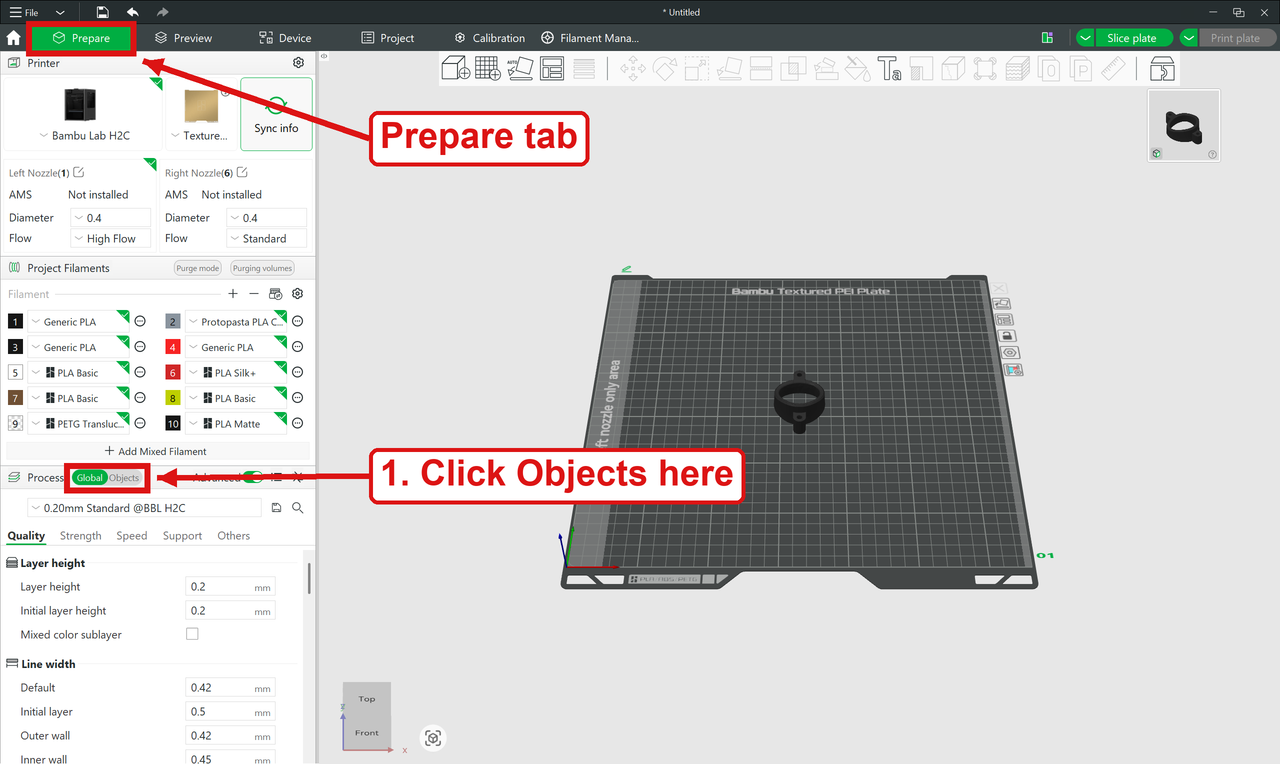
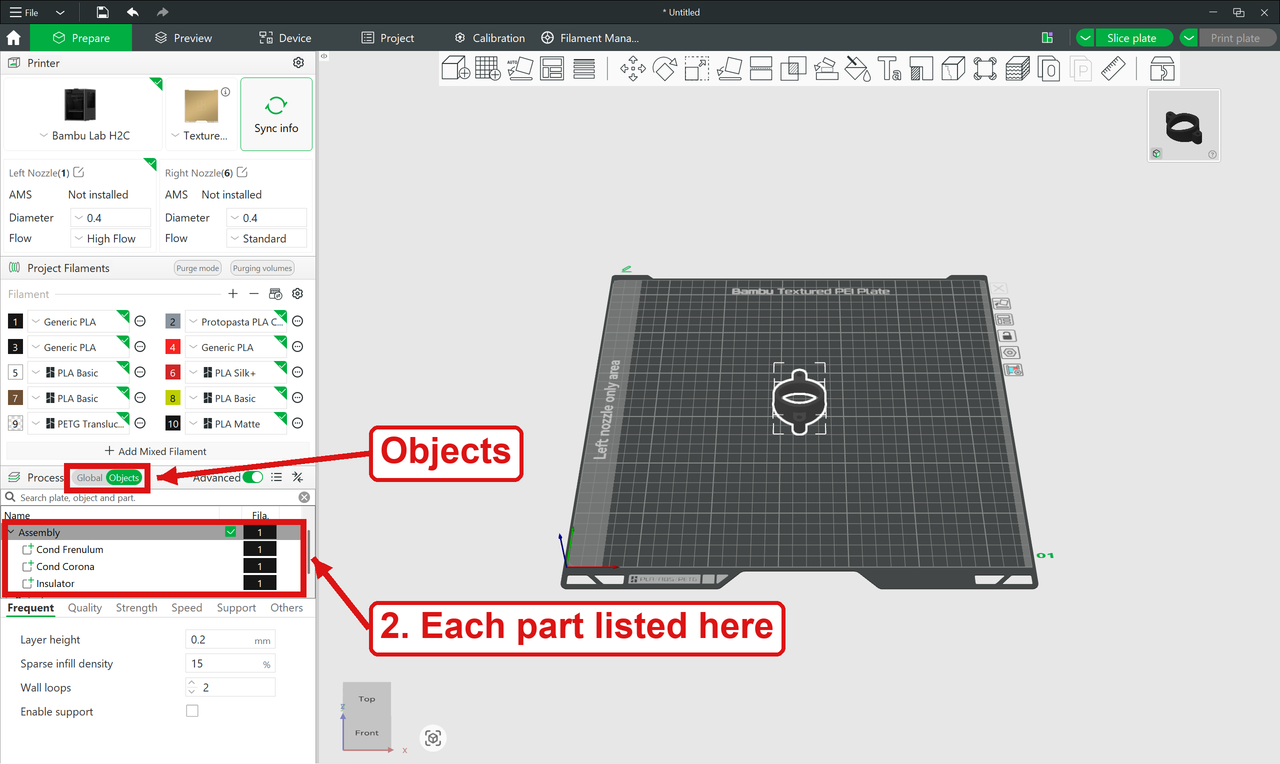
The object list appears. Open the object to see its parts. On the Pinnacle they are Cond Frenulum, Cond Corona and Insulator, all still on filament 1.
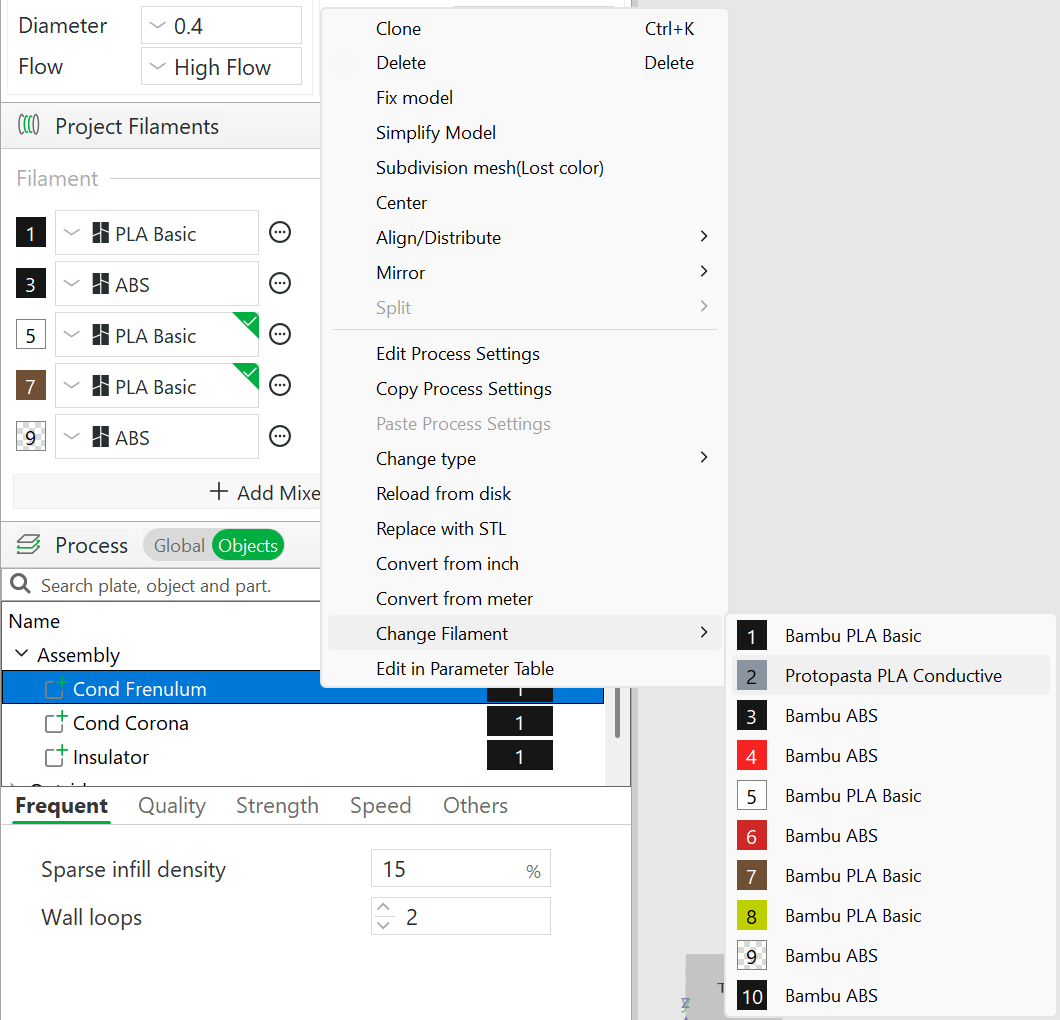
4. Put every Cond part on your conductive filament. Right-click the part > Change Filament and pick the conductive filament by name. Do it for each Cond part. You can also click the number in the Fila. column.
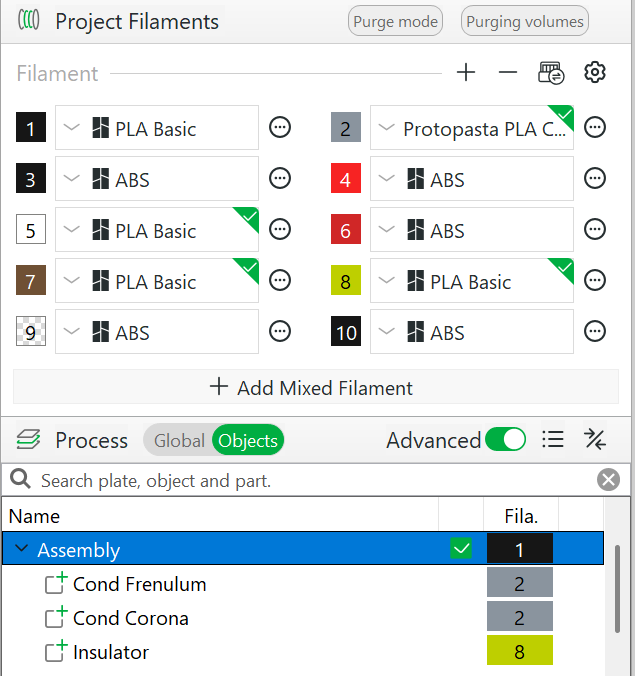
5. Put the Insulator on regular PLA. Check the list: both Cond parts are on the conductive filament (2 here), and the Insulator is on PLA (8 here).
6. Check it. The conductive zones show in the conductive filament's colour, and the insulating shell in the other.
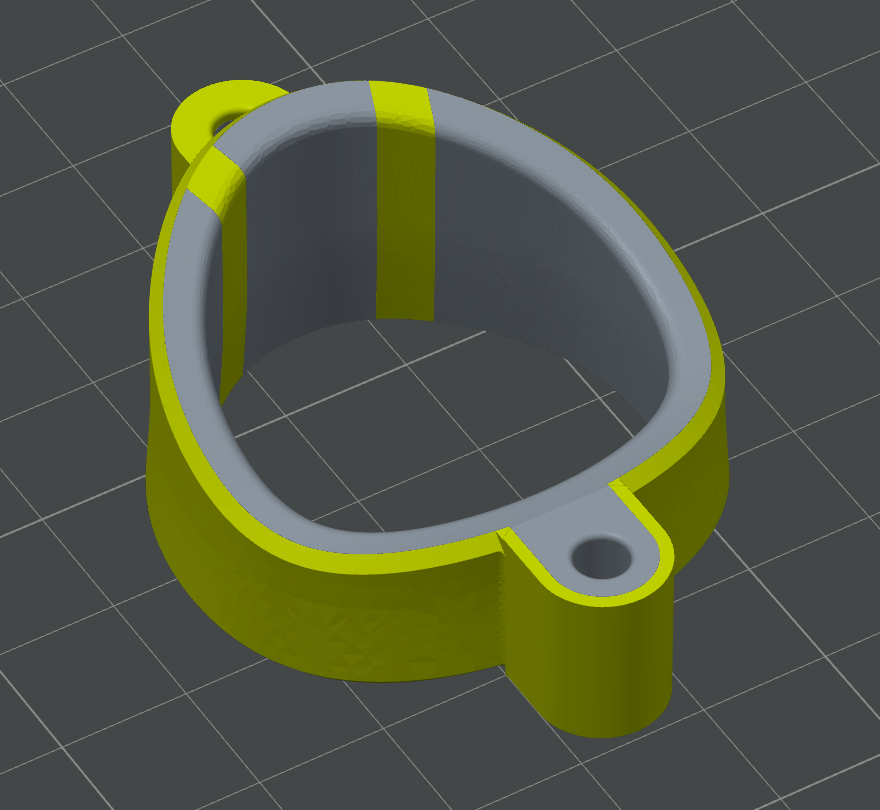
Then slice and print. Conductive PLA must be dry: damp filament strings, and the strings carry current where they shouldn't.
Example 2: The PlaStim Caliper (several pieces, two colours)
The caliper is several pieces: the carriage and each beam are separate files, and each loads as its own object. Do the same steps for each one. There's no conductive part; the -top part just gets your second colour.
Show the parts (Process > Objects). The carriage has -body and -top, and each beam has its own -body and -top.
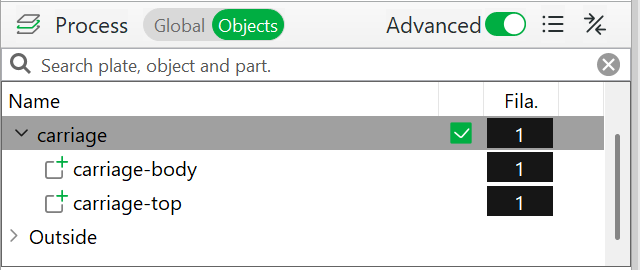
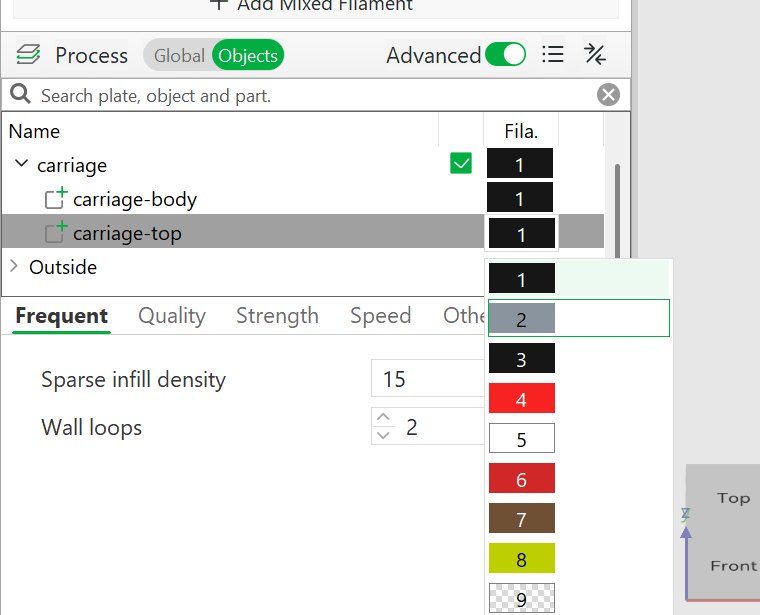
Give each -top part the second colour.
Check it: the marks show in the second colour, and only the top 1mm changes colour.
Loading several files at once
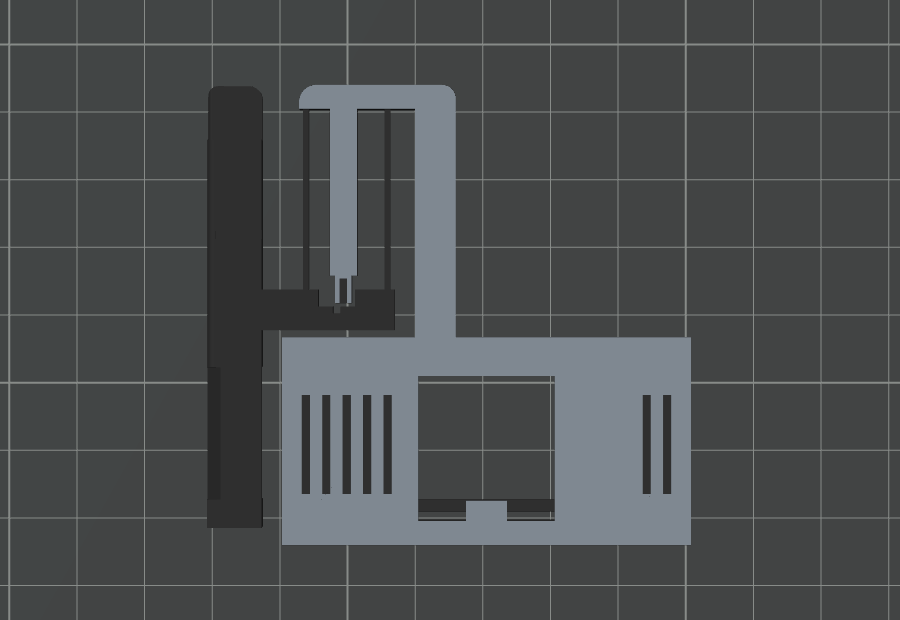
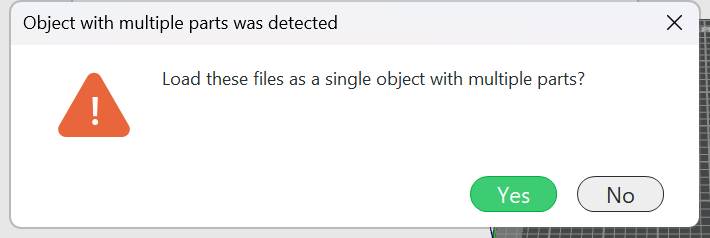
If you select more than one file, Bambu Studio asks: "Load these files as a single object with multiple parts?" Answer No. Yes merges different pieces into one object, stacked on top of each other.
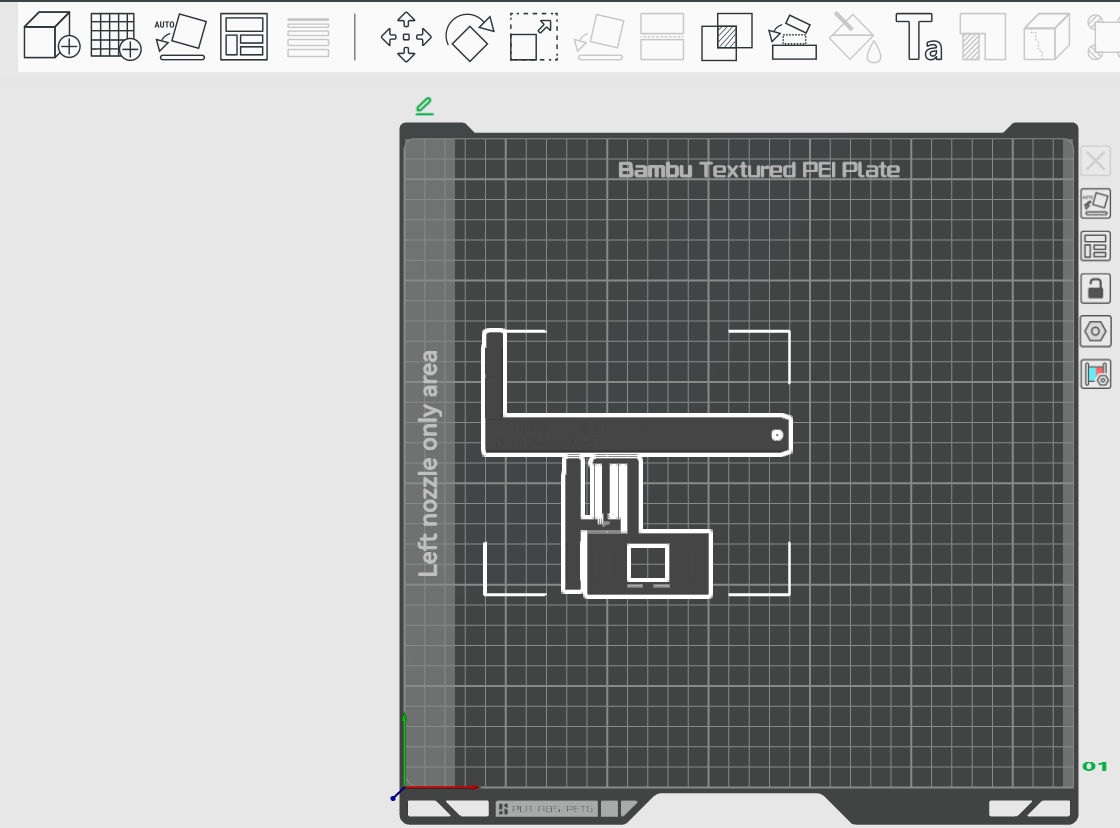
The files then land on top of each other: press A (Arrange) to spread them out. Each file is still its own object with its own parts, so open each object and set its filaments.
General settings
- PLA (and conductive PLA), 0.4mm nozzle, 0.20mm layers.
- Print each piece in the orientation it opens in. Each product page says whether it needs supports.
Caliper notes
- Print the scale sample first: a 6 minute test of your two colours.
- No supports, every part flat. The length beam is 274.6mm long: flat on a 330 x 320 bed, or corner to corner on a 256 x 256 bed.
- Slide the carriage onto a beam from the free end, jaws on the same side. There's no end stop, so one carriage serves every beam.
- Check it on a bank card (85.60 x 53.98mm): close until the touch lines meet. The pointer should cut the diamond in half: the long side on the length and XL beams, the short side on the standard beam.